
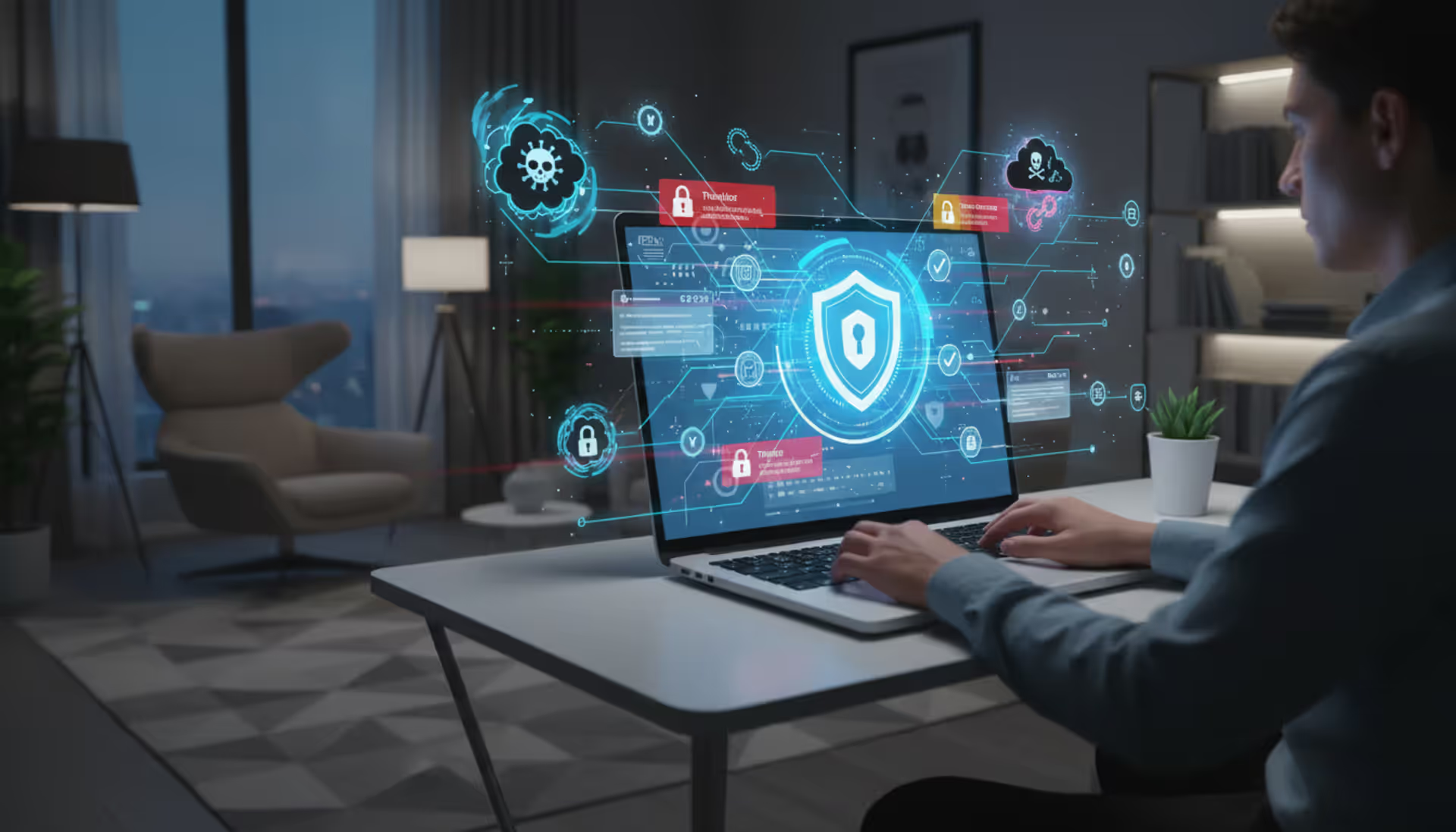
Modern workspace, person using laptop with antivirus icons and protection symbols, digital threats illustrated around
How to Prevent Computer Viruses?

Content
Content
Think your computer's safe? Last month alone, cybersecurity firms detected over 450,000 new malware variants targeting everyday users. That's not some abstract statistic—it represents real people losing family photos, getting locked out of work documents, or watching their bank accounts drain.
Here's what matters: You don't need a computer science degree to protect yourself. Simple habits and free tools stop the vast majority of infections before they start. Let's walk through what actually works based on two decades of security research and millions of prevented infections.
Understanding Computer Viruses and How They Spread
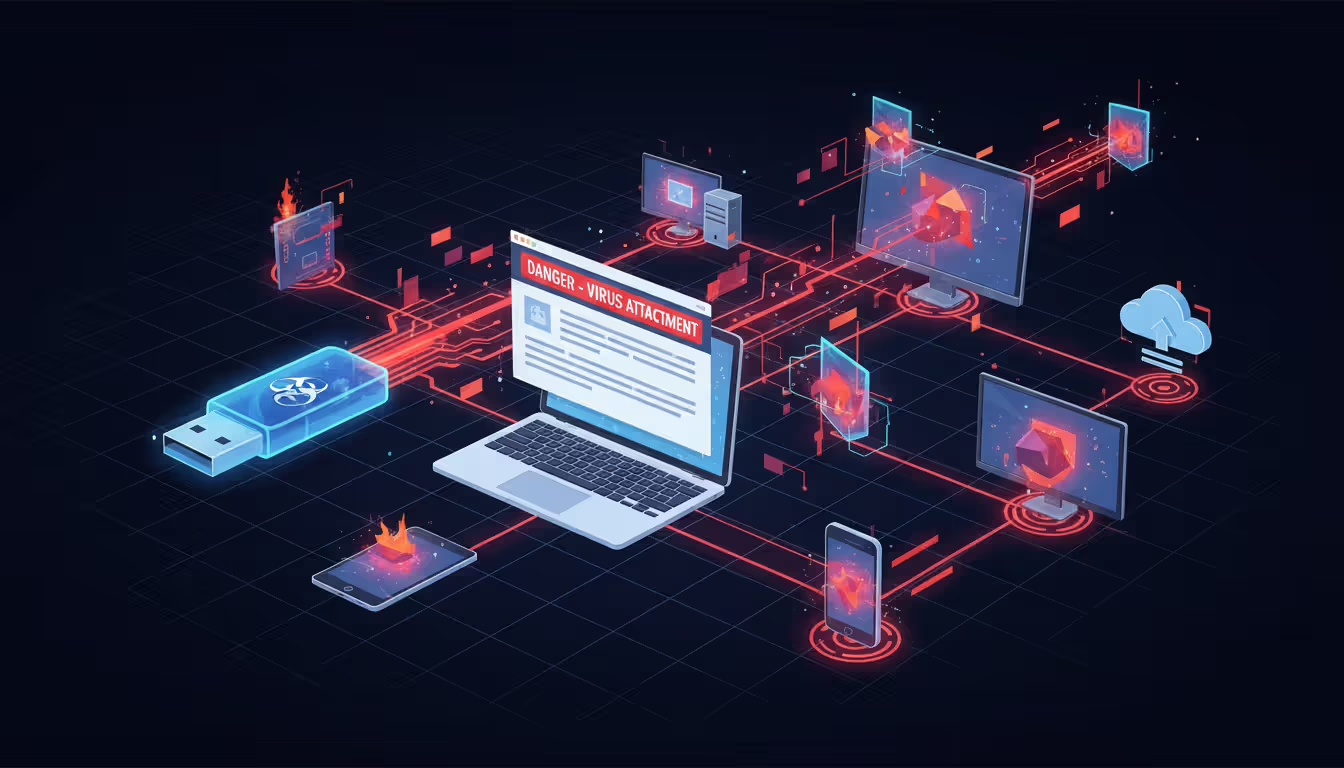
Computer viruses work like biological ones—they need a host. These malicious programs latch onto normal files and duplicate themselves whenever you share that file or run that program. Open an infected Word document, and suddenly the virus copies itself to other documents on your system.
Your email inbox is ground zero for most attacks. Someone sends you what looks like an invoice, a shipping notification, or a resume. The attached document seems harmless until you double-click it. At that moment, hidden code springs to life and begins replicating across your files.
Downloaded files from sketchy websites present obvious risks, but the danger goes deeper. You're searching for a popular video game or expensive software for free. The download site looks professional enough. You install the program, and it works perfectly—while quietly installing ransomware in the background that won't activate for another three weeks.
Physical devices spread infections too. Your coworker hands you a USB stick with last quarter's presentation. Unbeknownst to either of you, their computer was infected yesterday, and now that USB carries the same virus. You plug it in, and the infection jumps to your machine in seconds.
Here's something that surprises people: legitimate news sites and popular blogs sometimes infect visitors without meaning to. Hackers compromise advertising networks, injecting malicious code into banner ads. You visit your favorite cooking blog like you do every Tuesday, and a corrupted ad attempts to exploit your browser. Security researchers call this "malvertising," and it affects millions annually.
Modern threats have gotten nastier. Ransomware encrypts every document, photo, and spreadsheet on your computer, then demands $500-$5,000 to unlock them. Spyware watches everything you type—every password, every credit card number, every private message. Trojans pretend they're helpful utilities while secretly granting hackers remote control of your entire system.
The attack methods keep evolving, but they all exploit two weaknesses: software vulnerabilities and human trust. Viruses slip through security holes that developers haven't patched yet, and they trick you into clicking things you shouldn't. Addressing both vulnerabilities is how you avoid computer virus infections.
Author: Calvin Roderick;
Source: elegantimagerytv.com
Install and Update Antivirus Software
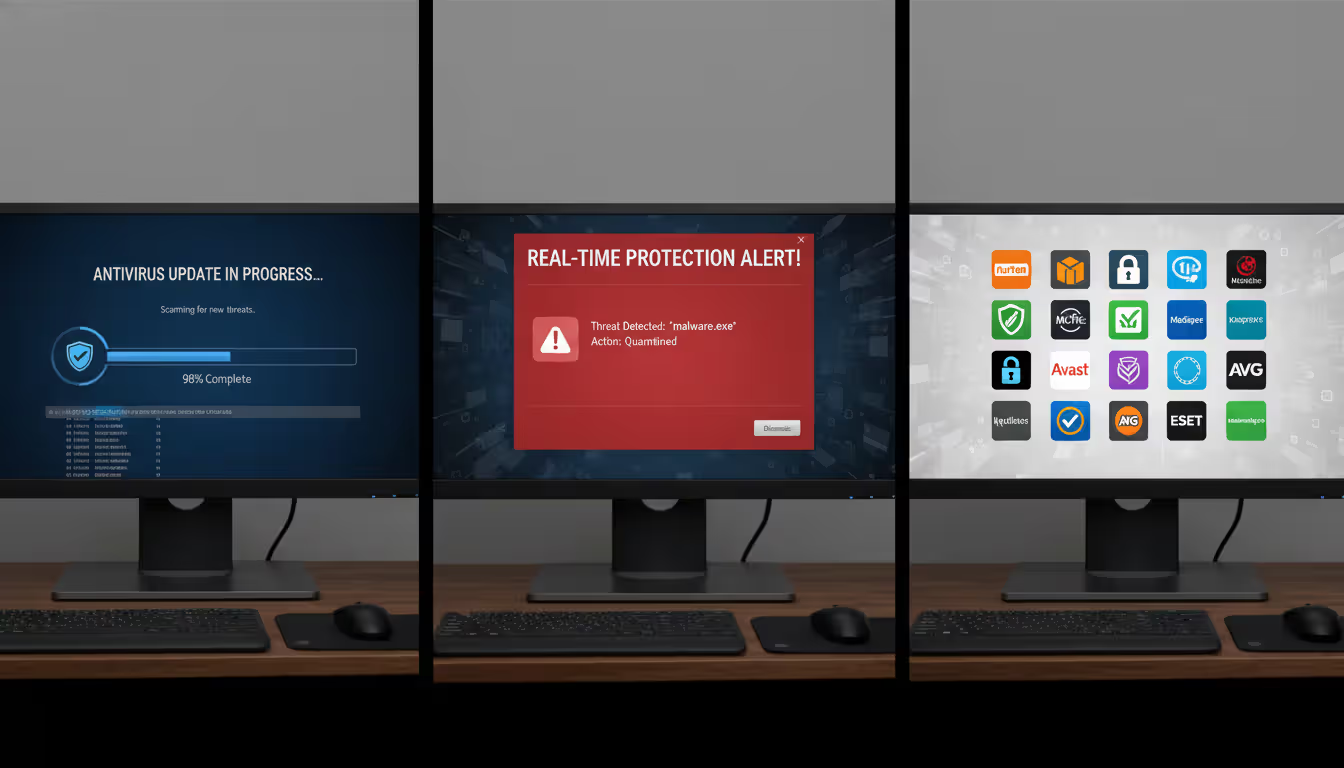
Antivirus programs act like security guards monitoring every entrance to your system. Files can't execute without passing inspection. Downloads get scanned before they finish. Email attachments face scrutiny before you ever click them. This constant vigilance represents your primary defense in the prevention of computer virus attacks.
Selecting antivirus software matters more than you'd think. Norton and Bitdefender routinely catch 99.5% of threats in independent laboratory testing. Kaspersky excels at detecting brand-new malware variants. McAfee offers strong protection with minimal system slowdown. ESET specializes in catching sophisticated threats that fool other programs. Malwarebytes serves as excellent secondary protection for handling infections that slip past primary antivirus.
The feature you absolutely must have is real-time protection. Some programs only scan files when you tell them to—completely useless against modern threats that install themselves in milliseconds. Real-time scanning watches continuously, examining files the instant you download them, checking websites before they load, and monitoring email attachments as they arrive.
Automatic updates determine whether your antivirus recognizes today's threats or only last month's. Security companies publish updated virus definitions multiple times daily, sometimes hourly during major outbreak events. Your antivirus needs these updates immediately, not when you remember to check. Configure automatic downloads and let the software handle timing.
Author: Calvin Roderick;
Source: elegantimagerytv.com
Free vs. Paid Antivirus Solutions
Windows Defender comes built into Windows 10 and 11, costs nothing, and performs surprisingly well. Independent testing labs now rate it comparably to paid competitors for basic threat detection. Cautious users who mainly check email and browse familiar websites often find it sufficient for computer virus prevention.
Paid antivirus packages justify their $40-$100 annual cost through depth and convenience. Here's what you're actually paying for:
| Feature | Free Antivirus | Paid Antivirus |
| Real-time threat detection | Basic signatures | Advanced behavioral analysis |
| Firewall capabilities | None or minimal | Monitors incoming and outgoing traffic |
| Customer support options | Community forums | Phone support, live chat, email tickets |
| Device coverage | Single computer | Usually 3-10 devices per license |
| Ransomware defenses | Signature detection only | Behavior monitoring plus file rollback |
| Password management | Not provided | Encrypted vault with auto-fill |
The real difference shows up when things go wrong. Free antivirus might detect a virus but leave you Googling removal instructions. Paid versions include expert support that walks you through cleanup. Free versions protect one device; paid licenses typically cover your laptop, desktop, tablet, and phone under one subscription.
Power users, frequent downloaders, and anyone managing family devices generally find paid protection worth the cost. Light users who rarely download files and stick to major websites can rely on free options combined with careful habits.
How Often to Run Virus Scans
Real-time protection catches most threats instantly, but scheduled deep scans find dormant infections hiding in archives, temporary files, or old downloads that never triggered real-time alerts.
Run complete system scans weekly if you regularly download software, open email attachments from varied sources, or visit diverse websites daily. Monthly scans work fine for people who primarily stream videos, check email from known contacts, and browse the same handful of sites.
Schedule these scans when you won't need your computer. Overnight works perfectly, or during work hours if scanning your home machine. Full scans require 45 minutes to 3 hours depending on your hard drive size—my 2TB drive with 800,000 files takes about 90 minutes.
Quick scans check startup locations, running processes, and common infection spots in 5-10 minutes. Run quick scans mid-week between full scans for peace of mind without the time investment. Most antivirus programs let you schedule both types automatically and choose what happens when threats appear—quarantine them, delete them, or ask for your decision.
Safe Browsing and Email Habits
Your judgment affects security more than any software. Antivirus catches known threats, but you prevent unknown ones through skepticism and attention to detail. These virus prevention tips cost nothing except awareness.
Links hide their true destinations until you check. Rest your mouse pointer over any link—don't click, just hover—and look at the URL preview that appears. Your bank's email should link to bankofamerica.com, not bankofamer1ca.com or secure-bankofamerica-login.xyz. Scammers register domains that look nearly identical to legitimate ones, counting on you to click without verifying.
Phishing emails impersonate trusted organizations to steal credentials or install malware. Watch for pressure tactics: "Verify your account within 24 hours or we'll close it!" Legitimate companies don't threaten customers via email. Generic greetings like "Dear Valued Customer" signal mass phishing attempts—your actual bank addresses you by name. Obvious spelling mistakes in official-looking messages reveal foreign scammers using translation software.
Unexpected attachments deserve skepticism even from known senders. Email accounts get compromised and automatically forward infected files to everyone in the contact list. Your colleague's email address might be genuine, but did they actually send you "Invoice_2847.pdf"? Send a text or make a quick call confirming the attachment before opening it.
Download software only from official sources—the developer's own website or verified app stores like Microsoft Store or Apple's Mac App Store. Third-party download sites like Softonic or CNET Downloads often wrap legitimate programs in installers containing adware, toolbars, or worse. That convenient download button on a search result might save three minutes but cost you three hours removing unwanted programs.
Your browser includes protective features most people never enable. Chrome, Firefox, Edge, and Safari all offer "Safe Browsing" or equivalent settings that warn you before loading dangerous sites. Turn on pop-up blocking to prevent fake virus warnings and scareware. Review your browser's privacy and security settings quarterly—it takes five minutes and catches issues before they become problems.
Never enable macros in Office documents unless you personally know the sender and specifically need that functionality. Macros are mini-programs embedded in Word, Excel, or PowerPoint files. Businesses legitimately use them for automation, but they rarely appear in documents from external sources. That job application requiring you to "Enable Editing" or "Enable Content" is almost certainly malware waiting to execute.
Keep Your Operating System and Software Updated
Software vulnerabilities are like unlocked doors—once discovered, attackers exploit them repeatedly until developers patch them. Running outdated software means leaving those doors open even after the lock has been installed and handed to you.
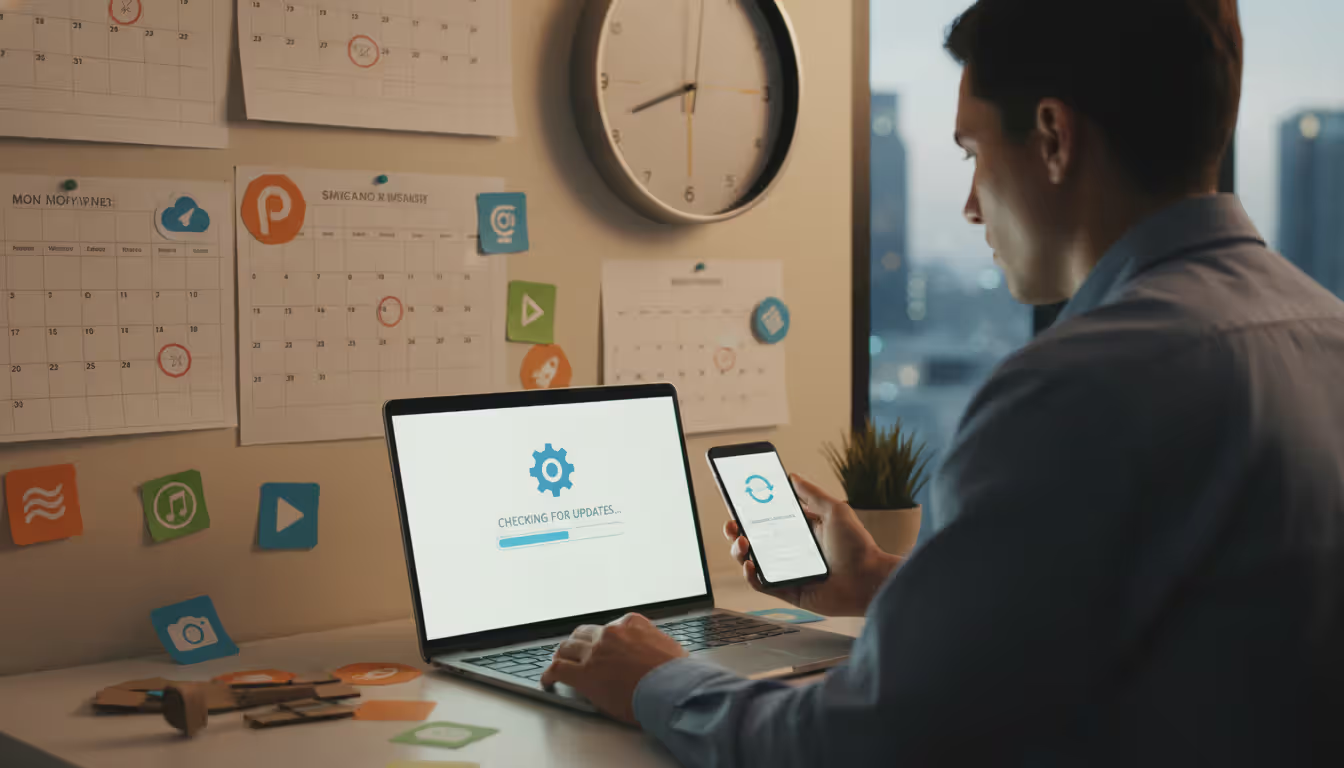
Operating system updates fix the most critical security flaws because Windows, macOS, and Linux control everything else on your computer. Microsoft releases security patches on "Patch Tuesday" (second Tuesday monthly), but critical vulnerabilities get emergency updates immediately. Apple pushes macOS security updates irregularly, sometimes weekly during active threat periods.
Enable automatic installation for security updates at minimum. Windows 10/11 users: open Settings > Update & Security > Windows Update and confirm automatic downloads are active. Mac users: System Preferences > Software Update > automatically check for updates. You can delay feature updates if you prefer stability, but security patches should install immediately.
Third-party software needs equal attention—browsers, Adobe Reader, Java, media players, and productivity apps all present attack surfaces. Adobe Reader was hackers' favorite target for years because millions ran version 8 when version 11 had already patched dozens of critical exploits. Check that auto-update is enabled in every program you use regularly.
Browsers deserve obsessive updating since they're your primary internet interface. Chrome, Firefox, and Edge update silently in the background and apply changes next time you restart them. Check your browser version monthly: click the menu icon, select "About," and verify you're running the current release. Safari updates through macOS system updates.
Yes, restarting for updates interrupts your workflow. Do it anyway. Schedule updates during natural breaks—leaving for lunch, ending your workday, before your morning coffee kicks in. Most updates complete in 5-15 minutes. Major OS upgrades might need 30-60 minutes, but they arrive only 1-2 times yearly.
Here's what nobody mentions: outdated software creates compatibility problems beyond security. When Chrome updates but your password manager doesn't, they stop working together smoothly. Crashes increase. Files corrupt. Maintaining current versions across all programs prevents these headaches while simultaneously improving your computer virus prevention.
Author: Calvin Roderick;
Source: elegantimagerytv.com
Use Strong Passwords and Enable Two-Factor Authentication
Weak passwords give attackers remote access to install malware without triggering any security software. If someone guesses your password and logs in legitimately, your computer thinks they're you and grants full privileges.
Password strength comes from length and randomness. "TropicalStorm2026!" beats "tropical storm" despite using the same words because it adds numbers, symbols, and mixed capitalization. Better still: "Correct-Horse-Battery-Staple" (four random words) provides massive strength through length alone. Generate passwords with at least 12 characters mixing uppercase, lowercase, numbers, and symbols—or go longer with random word combinations.
Reusing passwords across sites creates cascading failures. When Yahoo got breached in 2013, hackers stole 3 billion passwords. They immediately tested those combinations on Gmail, banking sites, PayPal, and Amazon. Users who reused passwords found multiple accounts compromised from one breach. A virus that steals your gaming password shouldn't grant access to your email, but password reuse makes it possible.
Password managers eliminate the memory problem. 1Password, Bitwarden, LastPass, and Dashlane generate unique 20-character random passwords for every account and store them in encrypted vaults. You create one strong master password that unlocks the vault; the manager auto-fills login forms on websites and apps. This costs $36-60 annually for premium features, or free for basic single-device usage.
Two-factor authentication requires proof beyond just your password. After entering your password, you must also provide a code from your phone, approve a notification, or insert a physical security key. This stops attackers who've stolen your password through malware or phishing—they can't log in without accessing your physical device too.
Enable 2FA immediately on: your primary email (which receives password resets for everything else), banking and investment accounts, cloud storage containing backups, and social media. Email matters most because controlling your email essentially controls all accounts that reset passwords through email verification.
Most services offer 2FA through authenticator apps like Google Authenticator, Authy, or Microsoft Authenticator. These generate time-based codes that change every 30 seconds. SMS codes (texts to your phone) provide weaker security because SIM swapping attacks can intercept them, but SMS-based 2FA still beats no 2FA. Physical security keys like YubiKey offer the strongest protection for high-value accounts.
Back Up Your Data Regularly
Backups save you when prevention fails. Ransomware can encrypt 50,000 files in under 10 minutes. Some viruses corrupt data irreversibly. Without backups, you're choosing between paying criminals or losing years of work, photos, and documents permanently.
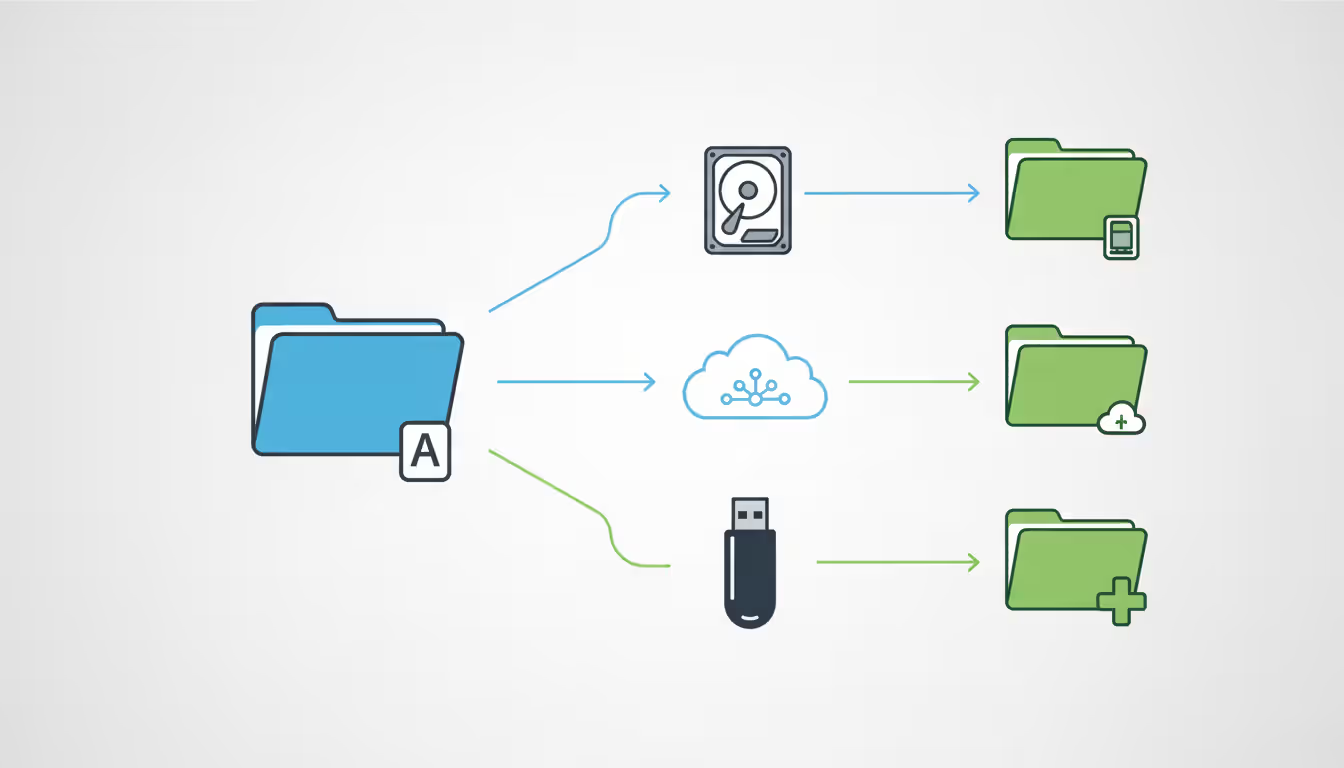
Security experts recommend the 3-2-1 approach: keep three total copies of important data, store copies on two different types of media, and maintain one copy in a separate physical location. This protects against device failure, theft, fire, floods, and virus infections simultaneously—no single disaster destroys everything.
Cloud backup services like Backblaze ($70/year), Carbonite ($72/year), IDrive ($80/year for 5TB), and Google One ($100/year for 2TB) automatically sync files to remote servers. Install the software, select which folders to protect, and forget about it. Changes upload continuously in the background. Your house could burn down tonight, and tomorrow you'd restore everything to a new computer.
External hard drives provide fast local backups for large collections. A 4TB external drive costs $80-100 and holds years of documents, photos, and videos. Connect it weekly, run Windows Backup or Time Machine, then disconnect and store it away from your computer. Physical separation prevents viruses from encrypting both your computer and backup simultaneously.
Backup frequency depends on how often important files change. Create content daily? Back up daily. Mostly read emails and browse? Weekly suffices. Cloud services handle scheduling automatically. External drive backups require discipline—set phone reminders or pick a recurring day ("every Sunday evening").
Test your backups quarterly by restoring random files. Discovering your backup process failed after ransomware strikes is too late. Spend 10 minutes every three months confirming you can actually recover files from your backup. This simple check catches configuration problems while they're fixable.
Version history features let you recover files from specific dates. If ransomware encrypted files three days ago before you noticed, restore versions from last week. Cloud services typically keep 30+ days of versions. Time Machine on Mac stores hourly backups for 24 hours, daily backups for a month, and weekly backups until your drive fills. This protects against gradually spreading infections that corrupt files over time.
Author: Calvin Roderick;
Source: elegantimagerytv.com
Common Mistakes That Lead to Virus Infections
Learning from others' errors helps you avoid computer virus infections without experiencing them firsthand.
Disabling antivirus "temporarily" tops the list. You're installing software that conflicts with your security program. You think "I'll just turn it off for five minutes," then forget to re-enable it for three weeks. If legitimate software conflicts with antivirus, contact support for proper exclusions rather than disabling protection entirely.
Ignoring security warnings demonstrates dangerous overconfidence. Your browser displays "This site may harm your computer" and you click "Proceed anyway" because you're impatient. Windows SmartScreen warns about an unrecognized download and you override it. These warnings exist because algorithms detected genuine threats. Clicking through requires solid justification—you personally compiled the software, you're a developer testing your own code—not just wanting something faster.
Pirated software bundles malware at extraordinary rates. Security researchers who analyzed 1,000 pirated programs found malware in 73% of them. Cracks, keygens, and unofficial installers commonly include trojans, spyware, or ransomware alongside the desired application. The $40 you save on Microsoft Office costs $1,500+ when ransomware encrypts your family photos. Free alternatives like LibreOffice exist for most paid software—use those instead.
Fake virus alert pop-ups trick thousands daily. "WARNING! Windows Defender detected 5 viruses!" appears in your browser while you're reading news. Legitimate antivirus displays warnings within its own program interface, never through browser pop-ups. These fake alerts pressure you into downloading actual malware disguised as scanning tools or calling scam support numbers. Close the tab without clicking anything in the pop-up.
Public Wi-Fi at coffee shops and airports transmits data unencrypted. Others on the network can intercept your traffic using simple tools. Avoid logging into sensitive accounts over public Wi-Fi unless you're using a VPN to encrypt your connection. Attackers create fake Wi-Fi networks named "Starbucks WiFi" or "Airport_Free_WiFi" specifically to capture passwords from unsuspecting users.
Rushing through software installation screens allows bundled junkware. Free programs frequently offer "partner software" like toolbars, browser extensions, or registry cleaners. The default "Express Installation" accepts everything automatically. Select "Custom Installation" instead, then read each screen and uncheck unwanted additions individually. This adds 30 seconds to installation but prevents hours of cleanup.
Opening attachments from unknown senders satisfies curiosity but invites infection. That unexpected resume from a job applicant you weren't hiring for, the invoice from a company you've never used, the shipping notification for items you didn't order—all common malware delivery methods. Even attachments from known contacts need verification if unexpected: "Hey, did you send me a file?"
security is fundamentally a process, not something you purchase. Products certainly provide some measure of protection, but effective security in our interconnected world requires implementing systematic processes that acknowledge and address the inherent vulnerabilities in every technology product
— Bruce Schneier
FAQ
Effective computer virus prevention layers multiple defenses that compensate for each other's weaknesses. Antivirus software catches known threats. Regular updates eliminate vulnerabilities. Backups provide recovery when prevention fails. Safe browsing habits stop attacks that exploit human trust rather than technical flaws. Strong passwords and two-factor authentication prevent unauthorized access even if malware steals credentials.
None of these measures provides absolute protection alone. New viruses emerge daily that no antivirus recognizes yet, but cautious browsing prevents you from downloading them. Your password might get compromised, but two-factor authentication blocks the login attempt. Ransomware might encrypt files, but your backup lets you restore everything and laugh off the ransom demand.
Start with fundamentals: install reputable antivirus software (paid or free), enable automatic updates for your operating system and all applications, establish a backup routine covering important files. Build from that foundation with strong unique passwords (managed through password manager software), careful email and browsing habits, and awareness of common infection tactics.
The time investment in prevention pays massive dividends. Maintaining security requires perhaps 20 minutes weekly—scheduling scans, verifying backups, reviewing security news. Recovering from a serious infection consumes 10-40 hours assuming complete recovery is even possible. Some data losses are permanent. Some identity theft consequences persist for years.
Threats evolve continuously, but core principles remain stable: maintain current software, verify before trusting, keep backups current, use security tools correctly. Following these practices won't guarantee perfect security—nothing does—but it reduces your infection risk to levels comparable to getting struck by lightning. Meanwhile, millions of people running outdated Windows 7 with disabled antivirus face infection odds closer to getting rained on during a thunderstorm.
Stay informed without becoming paranoid. Review security news quarterly to learn about new threat types. Update your practices when technology changes—switching from SMS to authenticator apps for 2FA, for example. Teach family members these same principles so they don't become the weak link infecting household devices.
You've now got the knowledge to protect yourself. Implementation matters more than information. Choose three changes to make this week: install antivirus, enable two-factor authentication on email, and configure automatic backups. Add three more next week. Within a month, you'll have robust computer virus safety without requiring ongoing effort.
Related Stories

Read more
Read more



The content on this website is provided for general informational and educational purposes only. It is intended to explain concepts related to cybersecurity awareness, online threats, phishing attacks, and data protection practices.
All information on this website, including articles, guides, and examples, is presented for general educational purposes. Cybersecurity risks and protection strategies may vary depending on individual behavior, technology usage, and threat environments.
This website does not provide professional cybersecurity, legal, or technical advice, and the information presented should not be used as a substitute for consultation with qualified cybersecurity professionals.
The website and its authors are not responsible for any errors or omissions, or for any outcomes resulting from decisions made based on the information provided on this website.